Blocking the way?
Give someone a way to ask you to move your vehicle.

Let people call or message you with a tap or scan, without displaying your phone number on the vehicle.
Order on WhatsApp↗Small gesture. Useful connection.
Give someone a way to ask you to move your vehicle.
Make it easier for a passer-by to let you know.
Let someone get in touch when your vehicle needs attention.
The visitor experience
A simple page with the essentials. No app download for the person scanning.
Tap with an NFC-compatible phone or scan the QR code. Your page opens in the browser.
Show a short note, such as “Please contact me if my vehicle is blocking yours.”
Visitors use the options you have enabled. Calling connects them to your phone through the browser calling service.
Please contact me if my vehicle is blocking yours.
Powered by MagictapExample page. Text and contact options are set by the owner.
You stay in control
A contact point, without displaying your number on the vehicle.
Getting started
Your printed guide walks you through activation.
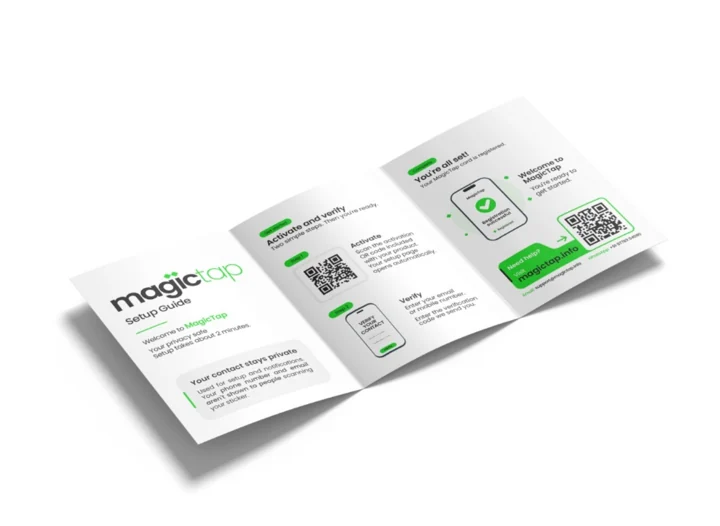
Use the activation code included with your sticker to open setup.
Enter your email or mobile number and confirm the verification code sent to you.
Choose what visitors see, enable your preferred contact methods, then test your sticker before placing it on your vehicle.
Good to know
No. The sticker opens your contact page in their phone’s browser. They need an internet connection to load the page and use its online contact features.
No. The sticker uses NFC and a QR code to open your page. You do not need to display a phone number on your vehicle.
Yes. The sticker owner can manage the displayed text and available contact methods from their account.
The visitor can scan the printed QR code with their phone camera instead.
Apply it to the inside of a rear side window with the printed face facing out. Choose a visible place where someone can safely tap or scan it, without obstructing your view or covering essential vehicle information. Ask us which placement and sticker format suits your vehicle.
Message us on WhatsApp with your quantity and delivery location. We will confirm pricing, availability, delivery and any applicable service terms before you order.
Make your vehicle easier to reach
For your own vehicle or a group order. Tell us what you need and we’ll take it from there.
We’ll confirm pricing and delivery in WhatsApp. Sending an enquiry does not place a paid order.